
How to Move Your WordPress Site Away From SiteGround
Keep your domain where it is. Move the hosting with no downtime before the DNS cutover — and move your mailboxes deliberately, before you cancel.
You can move your WordPress site off SiteGround hosting without transferring your domain away, and without taking your live site offline while the copy runs. Email needs its own plan rather than being left alone, because on SiteGround it lives inside the hosting account — this guide covers that too. Your SiteGround site keeps serving visitors until you change DNS, and if you prepare the cutover properly, nobody sees an error page.
Why this feels harder than it is
SiteGround migrations carry a different worry from the usual one. Most people are not leaving because SiteGround is bad at hosting WordPress — it is genuinely good at it — so the move tends to be driven by renewal pricing, resource limits, or a plugin you are not allowed to run. That makes it feel like a bigger decision than it is. Mechanically it is still just moving the hosting, and you can leave the domain and DNS exactly where they are. It feels like one indivisible thing. Hosting, domain, and DNS genuinely are separable and you can move the site hosting on its own. Email is the one that is not: on SiteGround your mailboxes are part of the hosting account, so that piece needs a plan rather than benign neglect.
To be clear about what I'm recommending: this is about sequence, not permanence. You can bring your domain, DNS, and mailboxes to HonestHosting too — plenty of people do, and having everything on one invoice makes costs easier to track. What I'd avoid is doing it all in the same week. Move the hosting, let it settle, then bring the rest across as its own task if you want to. Changing several things at once is what turns a straightforward migration into a confusing one.
This guide walks through a migration from SiteGround shared hosting to HonestHosting using the HonestHosting Site Migrator. The concepts — what moves, what stays, how to cut DNS over safely, what SiteGround leaves behind in your site — apply regardless of where you are going.
One quick check before you start: make sure you are actually on WordPress. SiteGround hosts plenty of things that are not WordPress — plain PHP applications, static sites, and its own site builder — and those are not WordPress. If you log in and there is no wp-admin, this guide does not apply to you — there is no WordPress site to migrate, and moving means rebuilding.
What actually needs to move?
The thing people call my website is really four services on one SiteGround invoice. Three of them are cleanly separable. The fourth — email — is not, and that is the one detail that makes a SiteGround migration different from most others.
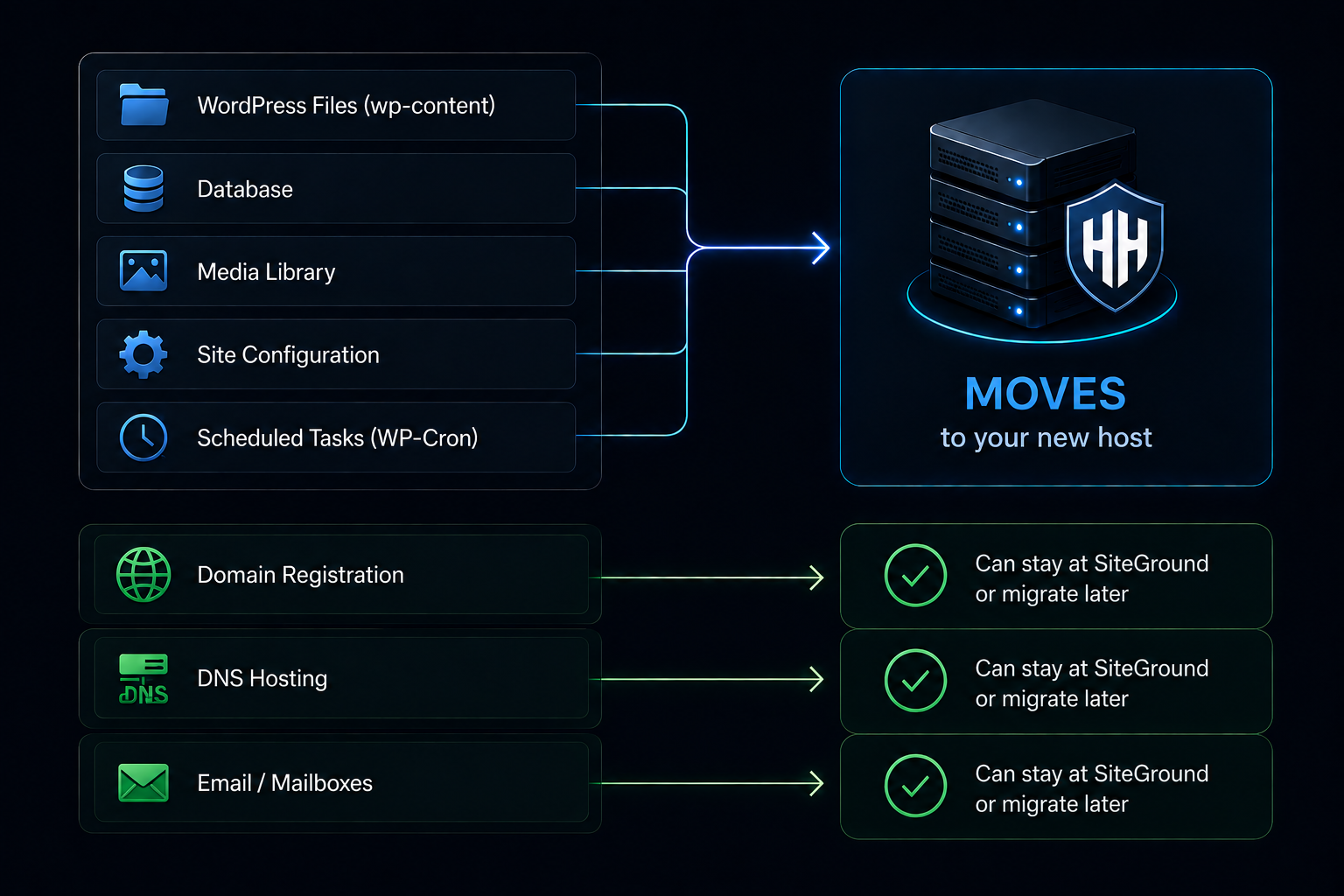
Hosting — the only thing that has to move
PHP, the database, your files.
Domain registration — does not have to move now
If you registered the domain through SiteGround, it is a separate product from the hosting and there is nothing wrong with leaving it there. Moving your hosting does not require touching it, and I would actively recommend against combining the two changes. If you want to transfer the domain later, do it later, as its own task, once the website is settled.
DNS hosting — leave the zone alone for the migration
The records that tell the internet where to find things. The SiteGround DNS is fine. You can leave the whole zone where it is and change only the two or three records that point at the web server.
Email — follows MX, but it lives inside your hosting account
This is the trap. If your mailboxes were created in Site Tools, your MX records point at SiteGround mail servers and the mailboxes themselves are part of the hosting account. Migrating the website does not affect them — leave MX alone during the cutover and mail keeps flowing. But cancelling the hosting takes the mailboxes with it. Email has to be migrated as its own deliberate step, before you cancel, and there is a section on that further down.
Cancelling SiteGround hosting and your other SiteGround products. Domain registration is a separate product and cancelling hosting should not cancel it. Email is NOT separate — mailboxes created in Site Tools are part of the hosting plan and go away with it. Confirm both against SiteGround documentation, and move your mail before you cancel anything.
Before you leave SiteGround
Work through this first. It's the difference between a boring migration and an interesting one.
Access and inventory
- WordPress administrator access to the live site — you need to install a plugin, so an account with
manage_options. - SiteGround account access, for DNS, backups, and eventually cancellation.
- Download a backup you control. Either use SiteGround's built-in backup + download tools, or install a free backup plugin, and download it directly from the site for safe keeping.
Where the pieces actually live
- Confirm the registrar. It is probably SiteGround, but check — plenty of people host at SiteGround with the domain registered elsewhere.
- Confirm which nameservers are authoritative with
dig NS yourdomain.com. If they are Cloudflare nameservers, your DNS is at Cloudflare and the Site Tools DNS screen is not what is live. - Export the full DNS zone — every record, not just the web ones.
- Note your MX records and which provider they point at. Mailboxes created in Site Tools point at SiteGround mail hostnames; if you see Outlook, Google, or another provider there, your email is already external and this migration is much simpler.
- Note your SPF, DKIM, and DMARC TXT records. These fail silently and the symptom appears days later as "our email goes to spam now."
- Note any verification TXT records — Google, Search Console, and any mail provider.
The site itself
- WordPress version. SiteGround applies core updates automatically, so you may be on a newer version than you remember.
- PHP version (Tools → Site Health, or the PHP Manager in Site Tools).
- Size of
wp-contentand roughly how many files. - Database size.
- Plugin inventory — and specifically, what's missing. If you have been on SiteGround you have not been running a third-party caching plugin, because SG Optimizer owns that job and competing caching plugins are disallowed. Note what you would actually want to run once you are free to.
- Look for
wp-content/mu-plugins/and note what is in there. If any are non-SiteGround related, note their names and paths (SG mu-plugins will be cleaned up by the HonestHosting site runtime, and should be safe to leave in-place). - Custom redirects in
.htaccessor a plugin. - Is Cloudflare (or another CDN) in front of the site?
Set up the destination and connect
Step 1: Create the HonestHosting site
In the HonestHosting app, open Site and click + Site:
| Field | What to choose |
|---|---|
| Site Name | Something you'll recognise in a list later. |
| Site Type | WordPress, at the version matching the SiteGround site. |
| Site Tier | The CPU and memory allocation. Changeable later without re-migrating. |
| Datacenter | Closest to your audience. |
| Storage GB | Comfortably above the measured wp-content size. |
| DB Storage GB | Comfortably above the measured database size. |
| Property | The client this site belongs to, if you group by client. |
Then enable the Import toggle — that's what generates the import key. Match the source site's WordPress and PHP versions here. You can migrate across versions, but if you change the runtime and the host in one move and something breaks afterwards, you won't know which one did it. Migrate first, upgrade second. The site provisions in about a minute.
Step 2: Get your import key
Open the new site and copy the Import Key. Treat it like a password. It authorises writing a complete site into your account and it's scoped to that one destination site. If it leaks, tell us and we'll rotate it.
Step 3: Install the Site Migrator on your SiteGround site
Log into the WordPress admin of the site on SiteGround — the source site. Plugins → Add New, search for HonestHosting Site Migrator, install, and activate. Releases are also on GitHub.
- Requires WordPress 6.7+, runs on PHP 7.4 through 8.5.
- No shell access and no external binaries — pure PHP.
- It only contacts the HonestHosting API and S3, and only after you enter an import key and click something.
A SiteGround-specific note: SiteGround restricts plugins that collide with its own stack, and enforces that rather than merely advising it (SiteGround KB — restricted plugins). The Site Migrator is not in those categories — it is not a caching, backup, security, or stats plugin, which is what the restrictions target. If it is ever blocked on your account, contact us and we will run the migration for you rather than leaving you to do it by hand.
Step 4: Connect the source site
Go to Tools → HonestHosting Migrator, paste the Import Key, and click Validate Key. The plugin fetches the destination site's details and shows them back — name, URL, type, tier, storage, datacenter. Read them. This is your confirmation you're writing into the site you think you are.
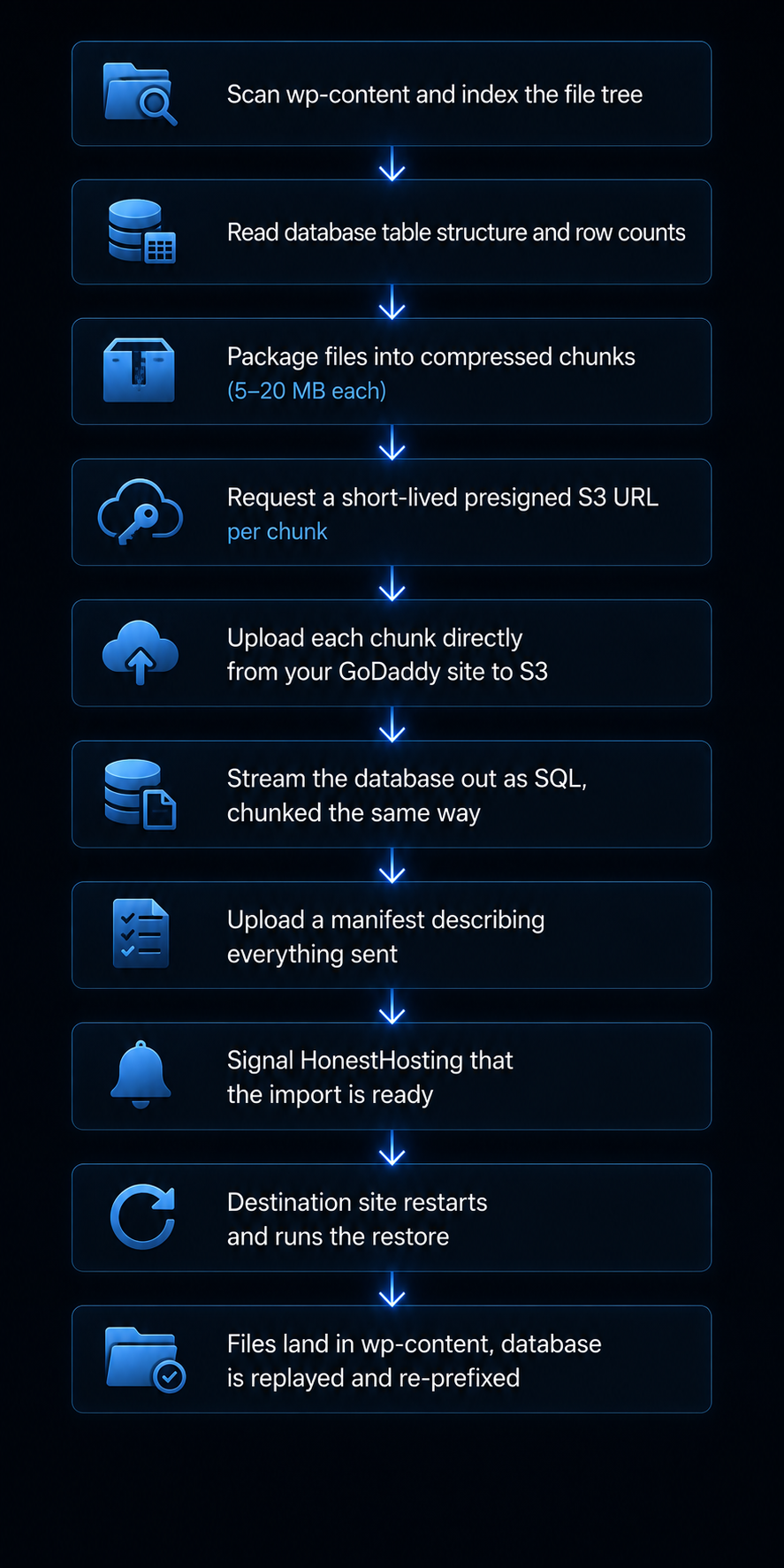
Two other settings: Chunk Size (default 10 MB, adjustable 5–20 MB — leave it unless asked) and Compression (leave it on; chunks are gzipped before upload). Click Save Changes.
Run the migration and validate it
Step 5: Run preflight checks
Click Run Preflight Checks. This decides whether the migration will work, and it's worth knowing what it tests:
- File analysis — walks
wp-content, totals size and file count, flags unusually large files. - Database analysis — size, table count, storage engines, flagging engines that may not restore cleanly.
- PHP compatibility — source PHP version against the destination.
- Hosting environment —
memory_limit(warns below 64M),max_execution_time(warns below 30s),upload_max_filesize,post_max_size, whether curl is loaded, whetheropen_basedirrestricts file access, whether gzip is available, and whether WP-Cron is usable. - Migration readiness — required PHP extensions and functions, writable session state directory, and whether an unfinished session is lying around.
- Destination fingerprint and capacity — name, URL, tier, storage, datacenter, plus warnings on version mismatches and whether there's room for what's coming.
Errors block the migration — deliberately, because each one represents a migration that would fail partway through. Warnings don't block and mostly shouldn't alarm you: a low max_execution_time warning just means the export will lean on resume support, which is what it's built to do.
Step 6: Start the migration
With preflight clean, choose Full Import and click Start Migration.
Chunks go straight to S3, not through our API. Payloads move directly from your SiteGround site to storage via short-lived, single-use presigned URLs, so there is no intermediary bottleneck or size ceiling.
Everything is checkpointed. Which files are done, which tables are done, which chunks are uploaded — all written to a local session store as it goes. If PHP times out, the page reloads, or the network drops, click Resume Migration and it continues from the last checkpoint.
What comes across. The migrator exports wp-content and your database, not WordPress core — the destination provides that. On a SiteGround migration that has a useful side effect: the SiteGround platform integration lives in wp-content/mu-plugins/ and wp-content/object-cache.php, so those do come across, and Step 9 is where you remove them.
The migrator does not rewrite your URLs. Your database arrives with siteurl and home still set to your production domain. When DNS moves, the site is already configured for the domain it's about to serve — no search-and-replace, no mixed-content scramble (but you should still double-check).
Step 7: Monitor the migration
Watch it from both ends. On the SiteGround side, the plugin shows live progress and a refreshable log. On the HonestHosting side, expand the Logs section on the destination site — manifest loaded, database connected, tables replayed, files written.
- Duration. Roughly 2–5 minutes each way for a small site, up to about 30 minutes each way for a large one. Drivers are total size, file count, your plan's execution limits, and upstream bandwidth.
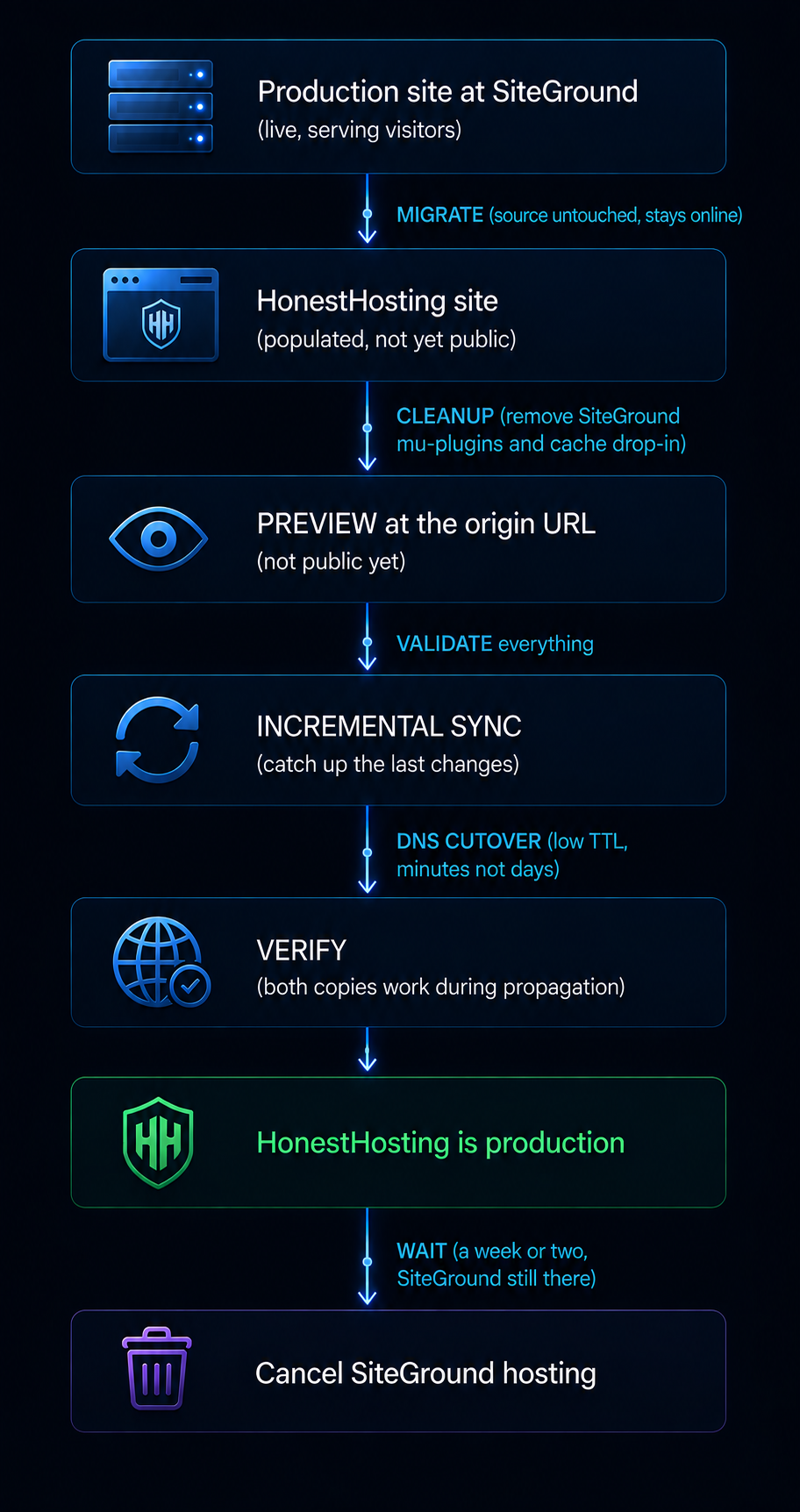
- Your live site stays up. The export reads from the source. It doesn't modify it or put it in maintenance mode.
- If it fails, the log says why. Click Resume Migration. If it keeps failing, click Download Debug Data — a JSON bundle with the import key redacted — and send it to us.
- If you need to start over, click Cancel. That clears both the local session and the import on our side. An import left non-terminal will reject a new one with a 409, so Cancel is what unsticks a weird state.
Step 8: Preview the site — before touching DNS
You don't need to change DNS to look at it. Every site has its own origin URL — a unique hostname on our domain, shown on the site detail page — and the moment the import finishes, your migrated site is live there with a valid certificate. Open it and check the copy while SiteGround carries on serving your visitors.
One thing to know while you are looking: the migrator does not rewrite URLs stored in your content, so absolute links and image sources still point at your production domain — which is still SiteGround. Pages render, but some assets are being fetched from the old host. That is expected and it resolves itself at cutover. It does mean the preview is not proof your media transferred, so check the Media Library in wp-admin rather than trusting the front end.
Then actually test it — not "the homepage loaded":
- Homepage, and several representative interior pages — one per template or builder type
- A blog post with images — do the images render?
- Media Library in wp-admin — thumbnails present?
wp-adminlogin- A contact form, submitted end to end
- Site search, custom post types, archives, menus and widgets
- Known redirects
- Every plugin that does something visible — did its settings survive?
- WooCommerce: product pages, add to cart, cart, checkout up to (not through) payment, My Account, admin order list
- Membership/LMS: log in as a member, confirm gating works
Find problems now, while SiteGround is still live and rolling back costs nothing.
Cleanup, cutover, and cancelling SiteGround
Step 9: SiteGround-specific cleanup
This is the part that's genuinely different from any other migration. All of it happens on the migrated copy at HonestHosting, before cutover.
Remove SG Optimizer and the SiteGround mu-plugin. SiteGround installs its platform integration in two places: SG Optimizer as a normal plugin, and a single sign-on shim as a must-use plugin in wp-content/mu-plugins/. Must-use plugins load automatically and cannot be deactivated from the WordPress admin — that is the point of mu-plugins. Off the SiteGround platform that code has nothing to integrate with, and it typically throws PHP notices and does nothing useful.
Enable FileManager (Site → Edit → FileManager toggle), connect over the web interface or SFTP, and look in wp-content/mu-plugins/ for SiteGround specific files or directories, and possibly a wp-cli-plugin or similar. The HonestHosting site runtime typically removes known-bad SiteGround files — some plugins and some agencies put genuine must-use code in there, and you may need those to successfully migrate — if you are unsure, you can always contact us and we are happy to help.
Reconsider the plugins you weren't allowed to have. On HonestHosting there is no restricted plugin list, so you can run what you want. (We would still act on something actively malicious or harming the platform — but that is a response to a specific problem, not a standing list.) Before you reinstall a caching plugin, though, read the next paragraph.
- Page caching is handled at the server by Sidekick, our Caddy caching module. You generally do not want a second page-cache plugin on top of it.
- LiteSpeed Cache specifically won't work here. Its page cache needs a LiteSpeed web server, and we run Caddy with FrankenPHP. Nothing stops you installing it — it just won't do the thing you installed it for.
- Object caching is the Redis toggle.
- Backups are the per-site Backup toggle, written to object storage.
So the honest advice is: the plugins SiteGround disallowed are mostly ones you still do not need here, for a different reason — the platform does that job a layer below WordPress. What you have gained is not install W3 Total Cache, it is no plugin gets removed from your site without your say-so.
.htaccess. SiteGround sites run on a stack that reads .htaccess. HonestHosting sites are served by Caddy, which doesn't. Standard WordPress permalink rules are handled for you; custom rules — redirects, security directives, expires headers — are not, and need recreating.
Scheduled tasks. WP-Cron jobs registered by plugins live in the database and came across. Anything you scheduled as a real cron job in Site Tools did not. Recreate what you need.
Step 10: Prepare the DNS cutover
Do this 24 to 48 hours before cutover. Lower your TTL first. Find the A (and AAAA, if present) records — usually @ and www — and set TTL to 300 seconds. Then wait at least as long as the old TTL was, because resolvers worldwide are still holding the previous value. This single step is the difference between "DNS took four minutes" and "DNS took two days."
| Record | Action |
|---|---|
A / AAAA for apex and www | Change to the new host |
CNAME pointing at the web host | Change if it points at SiteGround hosting |
MX | DO NOT TOUCH — this is your email |
TXT (SPF, DKIM, DMARC) | DO NOT TOUCH — email authentication |
TXT verification (Google, Search Console, mail provider) | Leave alone |
CNAME for mail autodiscovery (autodiscover, similar) | Leave alone — these are email, not web |
CNAME for third-party services | Leave alone unless pointed at SiteGround hosting |
SRV (mail clients use these), CAA | Leave alone |
The SiteGround email trap specifically. A SiteGround zone with Site Tools mailboxes contains more than just MX: there are autodiscover CNAME records and often SRV records that let mail clients configure themselves automatically. They look like infrastructure records and they are easy to "tidy up" during a migration, which is exactly how people break their own email.
The nameserver trap. The fastest way to break email while "just moving the website" is to switch nameservers without copying every record first. Nameserver changes replace your entire zone. If the new zone does not have your MX and mail records, mail stops — often silently, because your mail client keeps showing messages you already downloaded and it is the incoming mail that's disappearing.
My recommendation for SiteGround customers: do not move DNS during the migration. Leave the zone where it is, use Custom DNS on the HonestHosting site, and change only the web records. Two caveats: apex domains aren't supported in that mode, so your primary hostname needs to be www with the apex redirecting to it; and you place the certificate validation records yourself, first, before the site records (Custom DNS, Apex Domain).
If you're behind Cloudflare, this is easier. Nameservers stay at Cloudflare, MX and TXT stay untouched, and you change the origin the proxied records point at. Set the record to DNS-only (grey cloud) while testing, verify, then re-enable the proxy.
Step 11: Change DNS
- Run one final incremental sync. Run Incremental – All immediately before cutover so anything added since the full copy comes across.
- Change the A/AAAA records in the Site Tools DNS editor to point at the HonestHosting site.
- Leave everything else exactly as it is.
- Watch it propagate.
dig yourdomain.comanddig www.yourdomain.com, plus a multi-location DNS checker. With a 300-second TTL you'll see it flip within minutes.
During propagation, some visitors resolve to SiteGround and some to HonestHosting. Both are serving a working site, so nobody sees an error. The only consequence is that a form submission or comment landing on the old site during the window stays on the old site.before the cutover and the window should be short.
Step 12: Verify production traffic
- DNS resolves to the new host from several locations
- HTTP redirects to HTTPS, and the TLS certificate covers both apex and
www - Homepage and interior pages load; images and media load with nothing still pointing at a SiteGround URL
wp-adminlogin works- A contact form submission arrives where it should
- Send an email to yourself at your domain, and send one out. Both directions, immediately — not tomorrow
- Mail clients still sending and receiving still connect and sync
- Redirects still redirect; analytics is recording; Search Console shows no new crawl errors
- Scheduled posts and WP-Cron are firing
- No PHP notices from leftover SiteGround mu-plugins — if you see any, go back to Step 9
- WooCommerce: place a real test order end to end and confirm the confirmation email arrives
- Caching behaving — check response headers, and confirm logged-in users aren't served cached pages
Do not cancel SiteGround hosting yet. Leave it running at least a couple of weeks. One more month is the cheapest insurance you'll ever buy.
Step 12b: Move your mailboxes off SiteGround
Skip this if your email is already elsewhere. If your MX records point at Google, Microsoft, or any other provider, your mail is independent of the hosting and nothing here applies — go straight to Step 13. This section is only for mailboxes created in Site Tools, which are part of the hosting plan and are deleted when it is cancelled, along with any mail still on the server.
Do it in this order. Create the mailboxes at the new provider first, with the same addresses. Copy the existing mail across over IMAP — most providers have an import tool for exactly this, and it can run while SiteGround is still live because reading mail does not disturb delivery. Verify a few accounts by hand, including anything with years of history. Only then update MX and the autodiscovery records, wait for that to settle, and confirm new mail is arriving at the new provider. Cancel the hosting last, once nothing depends on it.
Step 13: Finalise, and cancel SiteGround carefully
- Take a fresh backup of the HonestHosting site and confirm the daily backup toggle is on.
- Confirm recent content is intact — posts, comments, form entries, and for a store, that order numbers are sequential with no gap at cutover.
- Deactivate and delete the Site Migrator from the old SiteGround site.
- Turn off FileManager and phpMyAdmin if you enabled them during cleanup.
- Check monitoring and uptime checks point at the new host.
- Download a final backup from SiteGround. Once the account is gone, so are their backups.
Cancelling SiteGround hosting without breaking anything else. This is where SiteGround customers get hurt, and for a different reason than most hosts. Work through it in this order:
- Cancel the hosting product only. Not the domain — that is a separate product. Email is the one that is NOT separate: mailboxes created in Site Tools are part of the hosting plan and are deleted with it, along with any mail still sitting on the server.
- Leave the domain registered at SiteGround unless you have a specific reason to move it. If you do want to transfer it, do that afterwards, as its own task.
- Confirm cancelling hosting doesn't disturb the DNS zone. DNS for a domain registered with SiteGround is normally tied to the domain, not the hosting product. Verify before cancelling!
- Migrate your mailboxes BEFORE you cancel. SiteGround mailboxes live inside the hosting account, so cancelling the plan deletes them and any mail still sitting on the server. Move them first: create the mailboxes at the new provider, copy the mail across over IMAP, update MX and autodiscovery once the copy is verified, and only then cancel. We sell Google Workspace accounts per seat if you want them here, and can assist with the transfer if needed.
- Understand the refund terms before you cancel. SiteGround offers a money-back window on shared hosting measured from the initial purchase rather than from a renewal, and a domain bought alongside the plan is billed separately and is not refunded with it. Check the current terms before you cancel, because they differ between first purchases and renewals, and time already served is not refunded (SiteGround — Terms of Service). In practice most people leaving mid-term are not getting money back, and cancelling is really about stopping the next renewal. However, you MUST verify your cancellation terms with SiteGround directly; HonestHosting cannot do this for you.
Common problems when leaving SiteGround
PHP notices or fatal errors after migrating
Almost always leftover SiteGround code. Check wp-content/mu-plugins/ for sso.php files and wp-content/object-cache.php and the SG Optimizer drop-in. Remove both (Step 9). This is the single most common SiteGround-specific migration problem and it usually shows as warnings at the top of wp-admin.
The site is slow or caching behaves strangely
Ensure you enable object-level REDIS and page-level Sidekick caching on your site. Additionally enable a global CDN if you are experiencing slowness from other locations.
Images still reference the old host
Usually cached HTML or a CDN serving old markup rather than the images themselves. Purge every cache layer, then check the database for absolute URLs pointing at a SiteGround hostname. If you kept your production domain there should be nothing to rewrite.
WordPress redirects to the old site
Clear all cache(s) first, then check for any mis-configured redirect plugins, then .htaccess rules you recreated. If you are previewing at the origin URL and getting bounced to your live site, a primary domain is already configured on the site — the platform points WordPress at that hostname, and it still resolves to SiteGround until you cut DNS over.
Website works but email stopped
MX records changed, or nameservers were replaced without carrying MX across. Run dig MX yourdomain.com and compare against the zone export you took at the start. If your mail was hosted in Site Tools, also check the autodiscover CNAME and any SRV records — if mail clients cannot autodiscover, users report "email is broken" even when mail is flowing.
SSL isn't working
Certificates are issued once the hostname resolves to the new server, so an error immediately post-cutover usually means DNS hasn't propagated. On Custom DNS it more often means validation records weren't placed first — the platform shows expected versus actual.
Cloudflare still points at SiteGround
Cloudflare proxies to whatever origin its records name. Changing nameservers at the registrar does not help if the records inside Cloudflare still point at SiteGround. Edit the A record in the Cloudflare dashboard.
Caching serves the old site
Five possible layers: browser, Sidekick server cache, Redis object cache, CDN edge, and the visitor's ISP. Try a private window first, then purge the CDN (CDN invalidation), then the object cache. Our CDN never caches /wp-admin/*, /wp-json/*, or wp-login.php, so stale wp-admin isn't the CDN.
Page builder content references old URLs
Elementor, Divi, Beaver Builder and similar store layouts as serialised arrays. A naive find-and-replace corrupts the serialisation and breaks the layout. Use a serialisation-aware tool — and if your domain didn't change, you shouldn't need one at all.
WooCommerce changed during migration
Orders placed on the old site after the export don't exist on the new one. Run Incremental – All immediately before the DNS change, keep the cutover window short, and afterwards confirm order IDs are sequential with no gap. For a high-volume store, a brief maintenance window during the switch is a legitimate choice.
Zero-downtime migration
The whole method is built around one principle: never break what's working until the replacement is proven.
The live site never goes down. The copy is a read operation. Preview is scoped to your own machine. During propagation both copies serve correctly. Rollback at any point before cancellation is: point DNS back.
For dynamic sites, the genuinely tricky part is data written to the old site after the export. Incremental sync plus a short cutover window handles most of it. For a store doing real order volume, consider a short maintenance window: put the store in maintenance mode, run the final incremental, change DNS, verify, come back up. Ten minutes of "we'll be right back" beats a lost order.
Should you actually leave SiteGround?
Reasons to leave that I think are legitimate
- The plugin blocklist. If you've had a plugin removed from your own site, or you can't run tooling your workflow depends on, you've hit the edge of the managed-platform trade. That's structural, not a preference.
- The renewal price. Introductory rates are substantially below renewal rates. It's the industry norm, not a trick, but it's a real budget change.
- You've outgrown the box. A managed platform is a set of decisions someone else made. Once you have opinions about caching, updates, or resource allocation, those decisions start costing you.
- You're an agency. No API, no client billing in the panel, and a plugin policy applied to every client site you run there.
Reasons to stay that are equally legitimate
- 24/7 phone support. I'm a small operation and I can't match it.
- Bundled malware scanning and removal on the higher tiers — a real service that matters if you'd have no idea what to do with a compromised site.
- Lowest entry price.
- One account for domain, DNS, hosting, and email, where SiteGround is also your registrar and DNS host — that keeps pointing a domain inside one panel.
- It's working. A migration that gains you nothing still costs a weekend.
SiteGround alternatives
If you're leaving, the options sort into categories:
- Other budget shared hosting. Cheap, similar architecture, similar constraints. Doesn't fix a resource or control problem.
- Managed WordPress platforms (WP Engine, Kinsta, Flywheel). Purpose-built, usually priced per site with visit-based tiers, strong on staging and developer workflow. Generally a step up in price — and note that most of them also restrict plugins, so check the list before assuming you've escaped that.
- Cloud/VPS (DigitalOcean, Hetzner, AWS, with or without a panel). Cheapest per unit of compute; you become the sysadmin.
- Isolated per-site WordPress hosting — where HonestHosting sits. A container and a database per site, guaranteed resources, per-site pricing, no plugin blocklist, managed for you.
- Agency-oriented hosting, where multi-client management, client billing, and an API matter as much as the hosting. Also where I sit.
No "10 best hosts" list with affiliate links here. Work out whether your problem is price, resources, or control, and pick the category that fixes that.
Moving to HonestHosting
If you're heading here, this is what you get for the migration itself:
- The Site Migrator plugin, free, on WordPress.org — chunked, resumable, direct-to-S3, with preflight validation, full and incremental modes, and optional scheduled sync.
- A destination you can validate before cutover, because the production site is never touched and DNS doesn't move until you say so.
- Per-site containers with guaranteed CPU and memory, plus a dedicated database container per site.
- No plugin blocklist. Nothing gets removed for being on a list, though we'd still act on something actively malicious.
- Help from us if you want it. The tooling is self-service by design, but if you'd rather we ran it — or you have a store and want a second pair of eyes on the cutover — get in touch.
What I won't claim: that every migration is trivial. Most are straightforward. Large stores, sites with heavy customisation, and anything with unusual server configuration take real work, and I'd rather set that expectation now.
Migration FAQ
Can I leave SiteGround hosting but keep my domain registered there?
Yes, and it's the right way to start. Domain registration and hosting are separate products on the same account. Cancel the hosting, keep the domain, and change only the DNS records that point at the web server. If you'd rather consolidate later — domain, DNS, and mailboxes all on one HonestHosting invoice — you can do that as its own task once the site has settled.
Will moving WordPress cause downtime?
Not during the copy — your SiteGround site stays live throughout. At the DNS cutover, both copies serve correctly during propagation, so visitors do not see an error. Lower your TTL 24 to 48 hours beforehand and the window is minutes rather than days.
Will my email stop working?
Not during the migration, as long as you leave your MX records alone. Email follows MX, not your website. Also leave the autodiscover CNAME and any SRV records alone — those are what let mail clients configure themselves, and removing them breaks clients even when mail is flowing. Cancelling SiteGround hosting deletes any mailboxes created in Site Tools, because they are part of the hosting plan rather than a separate product. Migrate your mail before you cancel — see Step 12b.
Do I need to change nameservers?
No, and for SiteGround customers I would recommend against it. Leave the zone where it is, use Custom DNS on the HonestHosting site, and change two or three records. Changing nameservers replaces your entire zone, which is how people accidentally take their own email down.
Can I keep using Cloudflare?
Yes, and it makes the cutover easier. Nameservers stay at Cloudflare, MX and TXT stay untouched, and you change the origin your proxied records point at. Set the record to DNS-only while testing, then re-enable the proxy.
Will my URLs change?
No. The migrator deliberately doesn't rewrite siteurl or home, so the site arrives configured for the domain it already uses. No search-and-replace, no permalink changes.
Will migrating hurt my SEO?
It shouldn't. URLs don't change, content doesn't change, and the site doesn't go offline. Keep the same domain and permalink structure, verify redirects after cutover, and watch Search Console for a couple of weeks.
What happens to my SSL certificate?
You get a new one, free and auto-renewed, issued once your domain resolves to the new host. You don't move the old certificate. On Custom DNS you place validation records yourself, first.
Do I have to remove the SiteGround plugins?
Yes — the gd-system-plugin must-use plugin and the object-cache.php drop-in both need removing after migrating. They can't be deactivated from the WordPress admin (that's what "must-use" means), so you remove the files via FileManager or SFTP. Step 9 covers it.
Can I finally install the caching plugin SiteGround disallowed?
You can install whatever you like — there's no blocklist here. But you probably don't want a page-caching plugin, because page caching is handled at the server by Sidekick and object caching is the Redis toggle. What you've actually gained is that no plugin gets removed from your site for being on a list. (We'd still act on something actively malicious, but that's a security response, not a policy.)
How long does the migration take?
Roughly 2–5 minutes each for export and restore on a small site; up to about 30 minutes each on a large one. Preparation and testing take longer than the transfer (typically).
When should I cancel SiteGround?
Not for at least two weeks after cutover. And cancel the hosting product only — not the domain, and not before your mailboxes are moved. Note that the SiteGround refund terms make mid-term refunds unlikely, so cancelling is mostly about stopping the next renewal.
What if the migration fails halfway?
Click Resume Migration; it continues from the last checkpoint. If it keeps failing, Download Debug Data and send us the bundle — the import key is redacted. Your live site is unaffected either way.
References
SiteGround (primary sources — NOT yet verified, confirm before publishing)
- SiteGround KB — restricted plugins
- SiteGround Knowledge Base (hub)
- SiteGround — WordPress Hosting plans
- SiteGround KB — caching and SG Optimizer
- SiteGround — Terms of Service
HonestHosting
Move your site from SiteGround
Create a HonestHosting site, enable the Import toggle, install the migrator on your SiteGround site, and run the preflight checks. Within a few minutes you will know whether your site will move cleanly — before committing to anything.